
How to use GS Pro
Players - Here you can create your own account. Map your bag, set your handicap and get your yardages and link your account to the sim golf tour.
Local Match - This is where you can play from any 1 of over 2000 courses around the world. Lots of formats and settings to choose from to customise it your preffered play.
The Main Menu
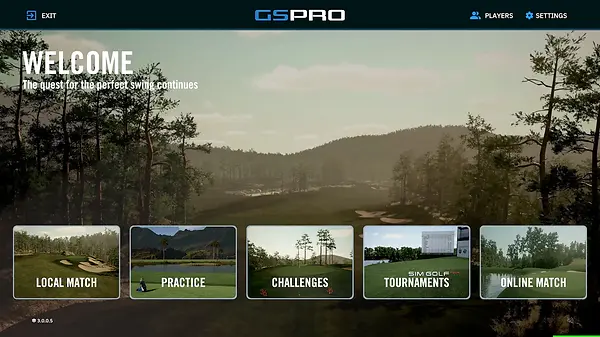
Settings - Here you can change the settings of the game but we recommend you leave these along and control the settings when you are setting up your match,
Online Match - Here we can link the two bays to play with/against each other by creating your own room and linking them together.
Practice - This is where you can hit the range and start working on your shots with all the data you need. You can also do on course practice to select any holes to give a go.
Challenges - This is where you can master your yardages and compete again others from around the world.
Sim Golf Tournaments - This requires a subscription to your profile but allows you to play on Sim Golf tours and compete on the World Stage.
Local Match
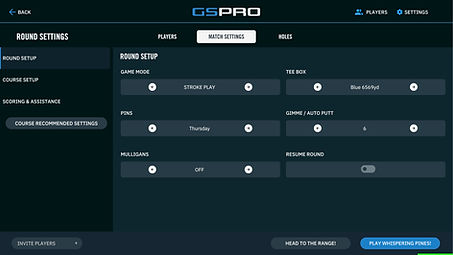

Match Settings - Here you can change the settings for the round to suit your play. You can choose a variety of game modes, pin locations, tee boxes and importantly your putting.
Putting - Here you decided how you want to play on the greens. You can choose your gimme circle in ft. You can also choose whether you prefer to do auto putt where it simulates it for you. Fixed is set circles or random is randomised depending on distance away.
Players - Here you can select your players for up to 8 people but you are limited to just 4 per bay. If you are playing a team format then remember to select the correct colours for teams and you have your handicaps assigned to your profiles. Create your new player from the button below if you don't already have one.
Practice Mode
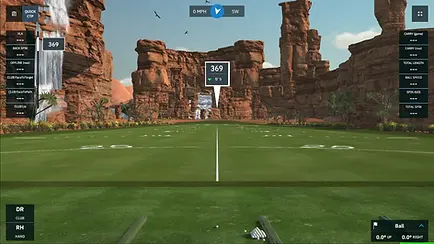
Practice Range - Here you can get warmed up for your round or work on your game and distances with all the stats you need to fix that slice.

Course Practice - Here you can assign your own practice schedule. You can work on certain holes, tee shots as well as set up your own closest to the pin between friends. This is how we also run our own closest to the pin competition each month so keep an eye out and be ready to win Prizes!
Challenges
Operation 36 - challenges players to get par or lower in 10 progressively more difficult levels on select courses. (Each level containing 9 holes)
Distance Challenges - Here you can select different yardages where you hit a series of shots and achieve an average points score you can compare with other playres from around the world as well as other players Happy Place users.
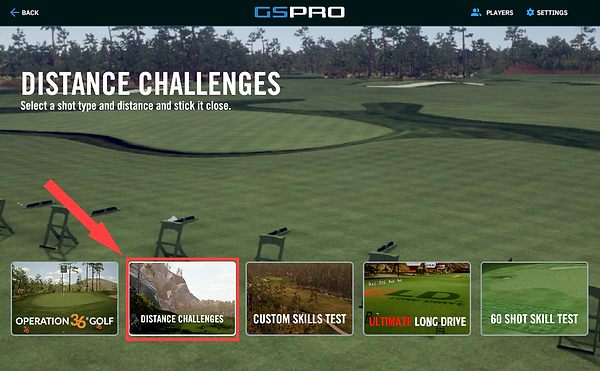
Custom Skills Test -This is a local (partially online) practice mode in which players can practice various user created custom rounds targeting specific shot shapes, trouble shots, clutch shots, and more.
Ultimate long drive -This is a fun challenge mode to test your driving distance limits or perhaps win that $10 you had bet your buddy you could out drive them. Users compete against themselves or others in a timed event to get the furthest possible drive within the bounds of the range.
60 Shot skill test - Standard Skills Test measures your Total Distance, or Carry (You may decide which) from a total of 60 shots at various distances. These combination of various distances allows you to test your skills for each club in your bag.
Sim golf tournaments


Simulator Golf Tour or SGT for short offers league play for GSPro. In order to play in any tournaments provided by SGT, you must first create an SGT account and bound that account’s ID to your GSPro Player of choice.
When creating your SGT account, be sure that your “Username” matches with your “Player Name” back in GSPro exactly. If these do not match, your scores from your tournaments may not be reported correctly. (More on where to locate Player information on GSPro below)
Now that you have created an SGT account, you will want to make sure your GSPro account is linked properly. In GSPro, please head to the “Settings” under the “Players” tab and locate your desired player. Here, you will find the two categories you will need to sync up. (Name, SGT ID, and I recommend Email Address)
Online Match
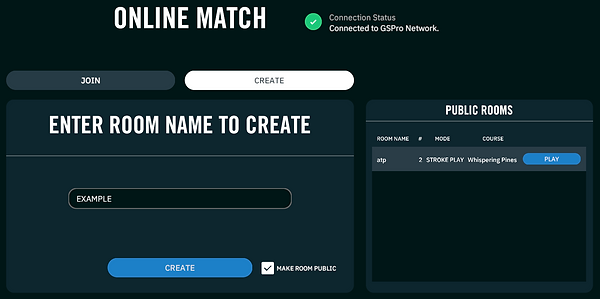
This is the function to join our bays together and play the same course/game with your friends in seperate bays. One bay needs to create and set the course settings up but make sure not to start until the other bay has joined.
Make Room Public: If you’d like to create an open room for anyone to view and join, enable this option.
If a player has already created an online room, ask for the room name and insert it into the “Join” tab instead:
Players Tab:
Within the first “Players” tab, you’ll be able to view/add players in the Online Match. With some additional information/settings at your disposal.
-
Local Player selection: In these slots, you can add more players locally by clicking the plus in an available slot, and selecting your players of choice.
-
Tee Box: Directly under the Player name, you can change the player’s tee box they’ll play from. (“Match Settings Tees” will default to the tee box selected in the Match Settings)
-
Change Team / Color: This option will allow you to change each player’s team color if the selected game mode is team based.
-
-
Players In Room: This section will show you what players are currently in the room, and what color team they are on. (New players may only join after a selected course has been chosen)
-
Create New Player: You may create new players directly here before starting the match.
-
Room Name: If you can’t remember what room name you created, you can find it labeled here.
-
Play: Once everything looks right, you can start your round.